London hosting for Edge and higher plan connection limits

Choose London or Virginia for MT5 hosting
Both regions are available on Core, Plus and Pro. In the Portal’s Edge page, choose Add Instance. London is selected by default under Hosting region, and you can choose Virginia if it suits your broker’s MT5 server better.
London gives you a hosting option outside the US if your prop firm requires one. Check your firm’s VPS and EA rules for your account. If your broker’s MT5 server is in the UK or Europe, hosting nearby can also lower broker ping.

Move an existing Edge instance
With a saved broker password, you can move a running instance between London and Virginia. Select the instance and choose Settings → Move instance. Check the destination before confirming. Your connection name and saved EA settings carry over.
Plan for a brief interruption. Allow about a minute to reconnect. Alerts sent during the move won’t execute. If your open positions rely on PineConnector-managed break-even or trailing stops, confirm with Support how they’ll be managed before moving. The Edge move guide covers the steps and checks.
More connections on Core, Plus and Pro
The higher limits below apply automatically to existing and new Core, Plus and Pro subscribers. No action is required. Your total includes connections on Edge and on your own PC or VPS.
| Plan | Total trading connections |
Edge hosting included |
|---|---|---|
| Core | 3 (was 1) | 1 instance |
| Plus | 10 (was 3) | 3 instances |
| Pro | 25 (was 5) | 5 instances |
More connections for the same monthly price. The included Edge hosting allowance stays the same. With the new Plus limit, for example, you can use 3 connections on Edge and 7 on your own PC or VPS, or use all 10 with your own setup.
Update an Edge instance from the Portal
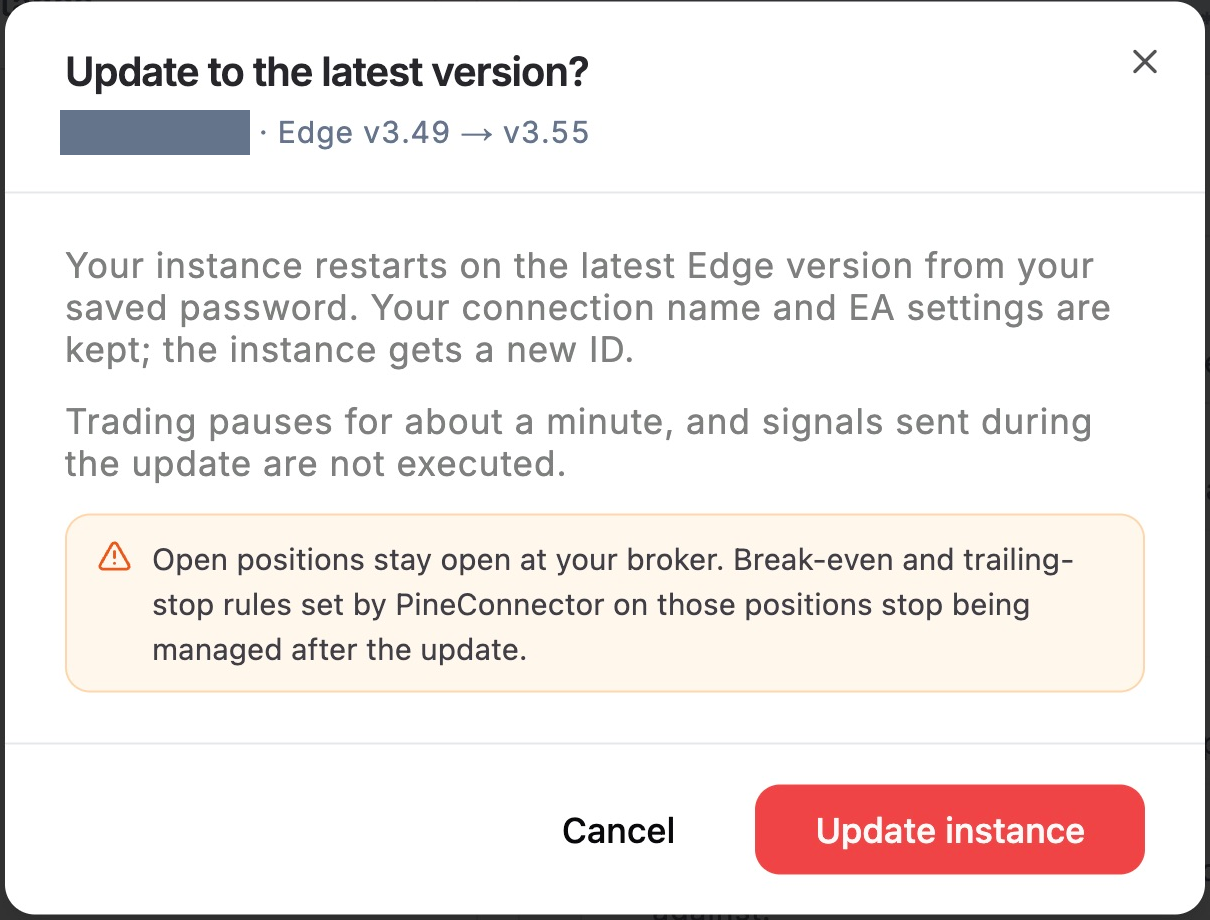
Open Settings on a running Edge instance to see its installed version. Choose Update instance when the Portal offers a newer version. Moving to another region and updating your Edge version are separate actions.
Before updating, plan for about a minute of interruption. Alerts sent during the restart won’t execute. Open positions stay with your broker. After the update, PineConnector stops managing any break-even and trailing-stop rules it set on those positions. Plan how you’ll manage them before proceeding.
The Edge update guide explains what to check after the restart.
Clearer trade errors and more broker servers
- Clearer trade errors. The new Edge version includes EA 3.54.5. If the EA stops an order during a sizing check, it now reports why. To check your EA version, select your account in Connections and open Terminal info. The EA error guide explains codes 7001–7007 and what to check next.
- More broker servers. We’ve added server entries for TMGM, Global Prime, Dukascopy, Swissquote and FP Markets, among others. Check the exact server name for your broker account when you add an instance.